Configure the Creation component for templates
After enabling the Creation from templates functionality for the entity type you want, you must configure the Creation component and add a template copy profile to it. This is to carry the properties of the source entity over to the template.
Example
In the following example of a Products page, the Creation component has been configured to allow the use of entity templates. As a result, it's possible to create a product from a template.
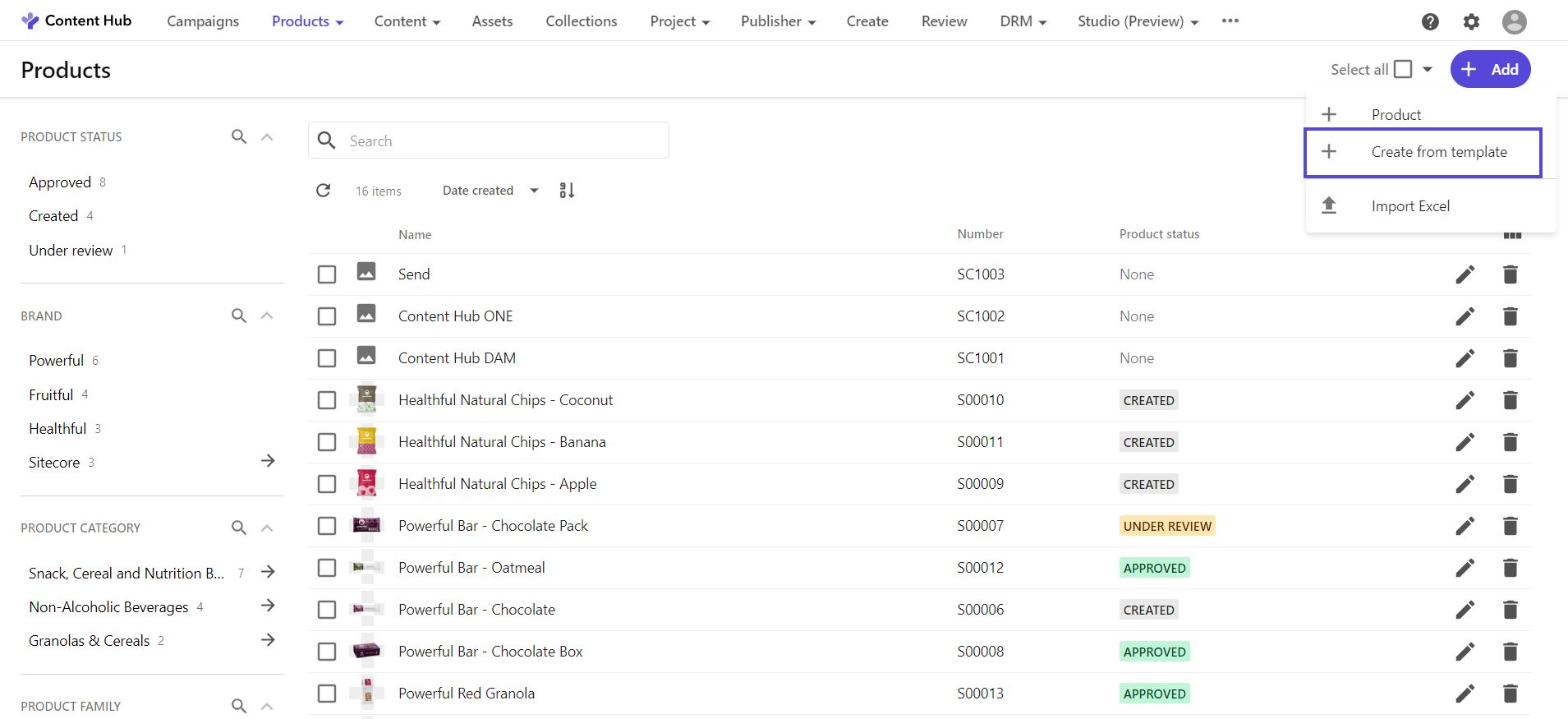
To configure the Creation component for templates:
-
On the menu bar, click Manage.
-
On the Manage page, click Pages.
-
On the Pages page, find the entity type you want, and then click the page that contains the related Creation component.
-
On the Creation component, enable custom settings by clicking Enable custom settings , and then click the component name.
-
On the Creation component page, in the left-hand pane, turn on the New entities from template switch.
-
Click Add definition and then click the definition you want. Only definitions that have been enabled for templating can be selected here.
-
Next to Copy profile, click Add.
-
In the Copy profile dialog, select New entities from template, and then click Select. You can only select copy profiles from the selected entity definition.
TipIf needed, you can edit the properties of the copy profile.
-
Next to Templates search component, click Add.
-
In the Portal page component dialog, select the Search component applicable to the entity definition you enabled for templating (for example Product templates), and then click Select.
NoteThis customizable Search component is available on the search page that is dynamically created under Pages > Creation templates when you enable the Creation from templates option for a specific entity definition.
-
Next to Fields, click Add field and then click the desired properties.
ImportantMake sure to add all the fields that are required in the related definition so that new entities can be created. For example, Name is often a required field.
-
Click Save.