Entity detail filters
Note
To configure Content Hub, you must either be a superuser or have the necessary permissions granted to you through user group policies.
Some types of information within an Entity details component can be automatically filtered according to established entity relations.
Example
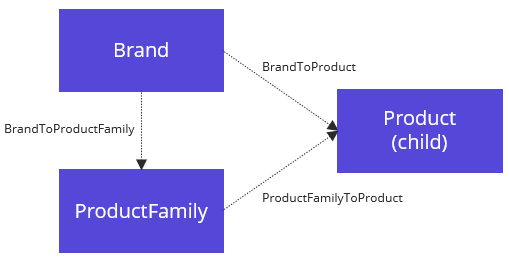
In this example, when a brand is selected for the product, the ProductFamily relation editor filters results to show only families that belong to that brand. For this to work, the following relations must be added to the schema:
| Entity | Relations |
|---|---|
| M.Brand | Parent of M.PCM.ProductFamily |
| M.Product |
|
Before you begin
-
Establish the necessary relations between entities in the schema.
-
Ensure you have an entity details component that contains all of the necessary member groups and members.
To add filters to an Entity details components:
- On the menu bar, click Manage .
- On the Manage page, click Pages.
- On the Pages page, select the details page you want to modify.
- On the Layout tab, click the component to open its details page.
- On the component details page, on the Members tab, turn on the switch to make members visible.
- In the Visible members section, next to the member to which you want to add filters, click .
- In the dialog box that opens, click the Functionality tab and, to add filters, click Add and select the relation to use when filtering values for this member.
- Click Save.
If you have suggestions for improving this article, let us know!