Configure how search results display
When configuring a Search component, you can enable one or more views in the left pane Views section of the component details page. Each view offers options that define how search results are displayed. Depending on the selected view, some or all of the following tabs are available:
To display the selected views on the page, open the Search component details page and, in the General section of the left pane, click Functionality In the Usage section, click the Page option.
Template tab
A template is used to display search results. Each view has a number of templates that alter the layout of text, images, and other content within search results. The following sections list the templates associated with each view and, if a template includes image renditions, which renditions are used. To use a template other than the default one, select it.
Grid
This view has the following templates and renditions.
| Templates | Renditions |
|---|---|
| ThumbnailStoryboardAnimated_thumbnail |
| BigthumbnailAnimated_thumbnail |
| N/A |
Inline preview
This view has the following templates and renditions.
| Templates | Appearance | Renditions |
|---|---|---|
| Image to the left fields to the right | 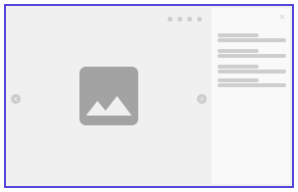 | Preview |
| Fields to the right as a light overlay | 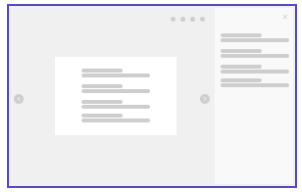 | |
| Image and fields to the right as a drawer | 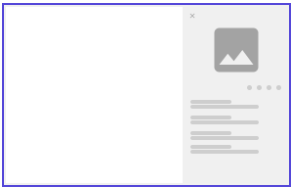 |
Table
This view has the following templates and renditions.
| Templates | Renditions |
|---|---|
| ThumbnailStoryboard |
| N/A |
List
This view has the following templates and renditions.
| Templates | Renditions |
|---|---|
| ThumbnailStoryboardAnimated_thumbnail |
| N/A |
Calendar
This view has the following templates and renditions.
| Templates | Renditions |
|---|---|
| ThumbnailStoryboard |
Pivot table
This view has the following templates and renditions.
| Templates | Renditions |
|---|---|
| N/A |
Chart
This view has the following templates and renditions.
Image and icon tab
To set an image on the search results, in the Image list, select one of the following options:
- Thumbnail - displays a thumbnail of the entity if it is available.
- Icon - displays icons instead of thumbnails, as configured in the Icon and color list.
Icon and color
To configure the style and color of an icon, in the Icon and color list, select one of the following options:
- None - uses the default style color (default).
- From entity - uses the style and color defined for the entity.
- From taxonomy relation - uses the style and color defined for a specific taxonomy. Select the taxonomy relation in the Relation list.
You can further customize the display using the entity visualization options in Search components based on taxonomy definitions.
Fields tab
You can decide which fields to display in the search results.
To define a field to display: Which fields that are available depend on the fields you select.
-
In the Fields section, click Add .
-
Next to Type, select one of the following options: Property or Relation.
-
In the Field drop-down list, select the field you want to configure.
-
Define the following settings for each field type:
PropertySetting Description Show user avatar Displays the user avatar instead of text. Applies to the Created by field. Display format How the field type is indicated (for example, text, badge, icon, or option list). Style The style for the text display format. Limit number of lines Switch to limit the number of lines in search results. Number of lines to show If you turned on the Limit number of lines switch, specify the number of lines to display. Conditional color Color for the display format for badges. Field expression Lets you select an operator and define an expression. Show help text Type and style of the help text displayed on the search result tile (for example, Inline or Tooltip). RelationSetting Description Display format How the field type is indicated (for example, text or icon). Limit number of items Switch to limit the number of items in search results. Applies only to the relation type. Number of items to show The maximum number of search results to display. Color Color of the text or icon used for the display format. Conditional color Color for the display format for badges. Field expression Lets you select an operator and define an expression. Show help text Type and style of the help text displayed on the search result tile (for example, Inline or Tooltip). Truncate label at Determines the number of label characters shown. If this is set to 0, the full label is shown. NoteFor the list view, the Advanced option is only available if you select the Card template.
-
Configure the additional settings required for the selected fields.
-
Click Save.
Operations tab
You can configure which operations to make available on the search results. Operations are internal or external actions involving the entity in question.
To add an entity operations component in the main click area, click Add operation.
The following table lists the available entity operations of the Search component.
| Operation | Description |
|---|---|
| Add to saved selection | Adds the entity to a saved selection. |
| Approve | Approves the entity in review. |
| Archive | Archives the entity. |
| Check in | Checks in the entity from external systems (such as Adobe Photoshop, InDesign, Illustrator, and so on). This operation persists the modifications applied to the entity in the external systems. |
| Check out | Checks out the entity to external systems (such as Adobe Photoshop, InDesign, Illustrator, and so on). This operation locks the entity. |
| Delete | Deletes the entity. |
| Direct-publish | Directly publishes the entity, making it available with the other approved entities while skipping the reviewing process. |
| Discard checkout | Discards the checkout of the entity and ignores any modifications applied to the entity in the external systems. |
| Download | Downloads the entity. |
| Generate PDF | Generates a PDF from the entity. This operation requires a preconfigured Print entity generation action. |
| Go to fixed path | Lets you enter a relative path to the details page as a text string. This improves performance when a user navigates from a search page to a details page. You must update this fixed path when you move a page. |
| Inline preview | Previews the entity using the inline preview display. This operation is only available for the Grid, Table, List, and Calendar output views. You need to enable the Inline preview output view for the operation to work correctly. |
| OneDrive checkout | Checks out the entity to a preconfigured OneDrive account. This operation adds the entity to the Checkouts page. |
| OneDrive download | Uploads a copy of the entity to a preconfigured OneDrive account. This operation uploads a copy of the entity, so the entity itself is not added to the Checkouts page. |
| Place | Places the image as a layer using Sitecore Connect for Creative Cloud (this operation is not meant to be used within Content Hub). |
| Preview | Opens a preview rendition of the asset. |
| Quick edit | Opens a window with a preconfigured entity details page to edit the entity. |
| Reject | Rejects the entity in review. |
| Remove from collection | Removes the entity from a collection it belongs to. |
| Remove from saved selection | Removes the entity from a saved selection it belongs to. |
| Remove from mass edit selection | Removes the entity from a mass edit selection it belongs to. |
| Restore | Restores the entity from the archive to its previous repository. |
| Select public link | Allows configured connectors to create and select public links for Content Hub assets within the connector's interface. When configuring the operation, in the Integration drop-down list, choose the connector you want to use. |
| Set as master | Sets the file as master file for an entity. For example, set as the master version of an asset. |
| Submit | Submits the entity for approval. |
| Toggle switch | Sets a Boolean property of the entity to true or false. You need to provide a Boolean field for this operation (for example, M.Script.Enabled). |
| Unlock | Unlocks the locked entity. Entities are locked when they are checked out to external systems. |
| Use direct link | Provides a direct link to the entity. This operation opens the provided link in a new window. |
| View ancestor details | Provides the ancestor details of the entity. You need to specify an ancestor relation and a redirection page. |
| View detail page | Redirects you to the detail page of the entity. |
| View details | Opens a configurable window showing the details of the entity. This operation provides various window types. The drawer type allows you to open multiple detail windows at once. |
| External action | Executes one or more preconfigured actions. This operation allows you to set visibility conditions and permissions. |
To add an operation:
- In the Operations section, click Add operation.
- Select the desired operation.
- Configure the display and operation settings.
- Click Save.
- To make the operation available in the More options menu instead of the Main menu, drag the created operation from the MAIN OPERATIONS zone to the MORE OPTIONS MENU zone.
Indicators tab
Indicators are flag-like properties (icons or labels) that provide additional information about an entity. To add an indicator, click Add indicator and configure the indicator settings. The following table lists available indicators.
| Indicator | Description |
|---|---|
| Asset media type | The asset media type of the entity. |
| Cover image | The entity has been designated as a cover image. |
| Created on | The entity is in Created status. |
| Deliverable lifecycle status | The lifecycle status of the entity. |
| Draft | The entity is a draft. |
| Duplicates exist | The entity has duplicates. |
| Gen AI | The entity was created or updated using generative AI. |
| Has annotations | The entity has annotations. To indicate the number of annotations, turn on the Show number of annotations switch. This displays a counter . |
| Has public link | The entity has a public link. |
| In review | The entity is in In review status. |
| Linked asset modified | The linked entity has been modified. |
| Local review | The entity has a local review. |
| Lock | The entity is locked. |
| Public links exist | There are public links available for the entity. |
| Publishing status | The publishing status of the entity, for example Draft. |
| Rejected | The entity was rejected. |
| System item | The entity is system-owned. |
| There is a new version of this linked asset | The file of the child linked asset is more recent than the file of its parent asset. Restricted to M.Asset entities. Applies only to Adobe InDesign files. |
| Custom indicator | A custom indicator, which can be configured based on a string, integer, or boolean value so that it only appears when a specific condition is met. |
Calendar settings tab
The following table lists available calendar settings. The calendar view is particularly useful for time-based assets, such as event photos or scheduled content.
| Setting | Description |
|---|---|
| Start date | The first date in the search range, for example, the first day when an asset was created. |
| End date | The last date in the search range, for example, the last day when an asset was created |
| Facet for grouping | How search results are grouped. |
Visualization tab
The following table lists the available visualization options.
| Visualization | Description |
|---|---|
| Column Chart | A column chart displays categories along the horizontal axis and values along the vertical. |
| Table | A table is a collection of related data held in a table format. |